

The short version
- The EPG is the programme guide. It is separate from the channel list and comes from its own source.
- Your provider's guide is the one to use, because it is already matched to your channels.
- A blank guide usually needs a guide address, a manual refresh or a corrected device clock.
- Listings an hour out are fixed with the time shift setting. Gaps on particular channels are a matching problem.

What is an IPTV EPG?
In plain terms, the IPTV EPG is your IPTV TV listings: what is on now, what is on next and the week ahead, laid out as a grid.
EPG stands for electronic programme guide. It is the grid you bring up to see what is on: channels down the side, time along the top, a block for each programme. On a satellite or cable box it has been there for so long that nobody thinks about where it comes from.
On IPTV it is worth thinking about, because the guide and the channels are two separate things that happen to be shown together.
The channels are streams of video. The guide is information: a long list saying that this channel is showing this programme from this time to that time, with a title and a description. One can work without the other. A channel can play flawlessly with no listings beside it, and a guide can be full of listings for channels that will not play.
That separation explains nearly every guide problem. When someone says their EPG is not working, the video is usually fine. What has gone wrong is that the information has not arrived, has not been matched to the right channels, or is being shown at the wrong time.
A good guide matters more than people expect. It is what turns a list of several hundred channel names into television you can browse. It also powers the features built on top of it: reminders, scheduled recordings and catch-up.

How the IPTV EPG works
Three things have to happen before a programme title appears next to a channel.
- The player downloads the channel list. This comes from your playlist or login, and gives each channel a name and, ideally, an identifier.
- The player downloads the guide data. This comes from a guide address, and contains a schedule for each channel, labelled with that channel's identifier.
- The player matches the two. Where a channel's identifier in the list is the same as an identifier in the guide, the schedule is attached to the channel.
Then the player shows each programme at the right place on the grid, using the start and end times in the guide data and the clock on your device.

Each step is a place where things can go wrong, and the symptoms are different in each case.
| If this step fails | You see |
|---|---|
| Guide data is not downloaded | No listings anywhere |
| Matching fails for some channels | Listings for some channels, none for others |
| Times are interpreted wrongly | Listings in the wrong place, typically an hour out |
| The data is old | Listings that stop today or tomorrow |
Keep that table in mind. It is the map for everything that follows.

EPG sources for IPTV: where the data comes from
A free popular EPG for IPTV is usually a community file, and a paid service supplies its own. With a subscription, the IPTV EPG should arrive with the login and need no hunting.
The guide has to come from somewhere. There are three kinds of source.
Your provider's guide
This is the one to use. A service compiles or licenses schedule data for the channels it carries and publishes it with identifiers that match its own channel list. Nothing needs matching by hand.
How it reaches your player depends on your login.
- With an Xtream Codes login, the player asks the service for the guide directly. In most players it loads without your entering anything.
- With an M3U link, the guide has its own address. Sometimes that address is written inside the playlist and the player picks it up. Otherwise your provider gives it to you to enter. For services using the Xtream format it follows a standard pattern, described in our page on Xtream Codes logins.
Third-party guide sources
Separate services exist that supply schedule data for large numbers of channels, some free and some paid. People turn to them when a provider's guide is missing or poor.
They have a drawback. A third-party guide knows nothing about your provider's channel list, so its identifiers will not match. You have to connect each channel to its schedule yourself, in a player that allows it. It is workable for a favourites list of thirty channels and tedious for three hundred.
Public tools
Popular free EPG sources are community projects. The iptv-org project, best known for its free playlists, also maintains open-source tools for building guide files.
For public playlists, such as the lists of openly available streams described in our page on free IPTV playlists, there is no provider to supply a guide. Volunteer projects publish tools that collect schedules from public sources. They need technical skill to run.
The practical conclusion is simple. If you are choosing a service, the quality of its guide is something to check before you pay, because it is far easier to start with a good one than to patch a bad one. Our page on what the best IPTV service offers includes it among its ten checks.

What guide data looks like
Guide data almost always travels in a format called XMLTV. Like a playlist, it is plain text that you can open and read. A small example shows how it fits together.
<channel id="news.uk">
  <display-name>Example News</display-name>
</channel>
<programme start="20261110180000 +0000" stop="20261110183000 +0000" channel="news.uk">
  <title>Evening News</title>
  <desc>The day's headlines.</desc>
</programme>
There are two kinds of entry. A channel entry gives an identifier, here news.uk, and a name. A programme entry gives a start time, a stop time, the identifier of the channel it belongs to, a title and a description.
Two details in that example explain most guide faults.
The identifier. The player attaches this programme to whichever channel in your list has the identifier news.uk. In an M3U playlist, that is the tvg-id field. If the playlist says news.uk and the guide says news.uk, they match. If the playlist says ExampleNews or leaves the field empty, they do not, and the channel shows no listings. Our M3U playlist explainer shows where that field sits.
The time. Each time ends with an offset, here +0000, saying which time zone it is written in. Your player converts it to local time. If the offset in the data is wrong, or missing, every programme lands in the wrong place.
Guide files are large. A week of listings for several hundred channels can run to tens of megabytes, which is why they are usually compressed and why a first download takes a while.
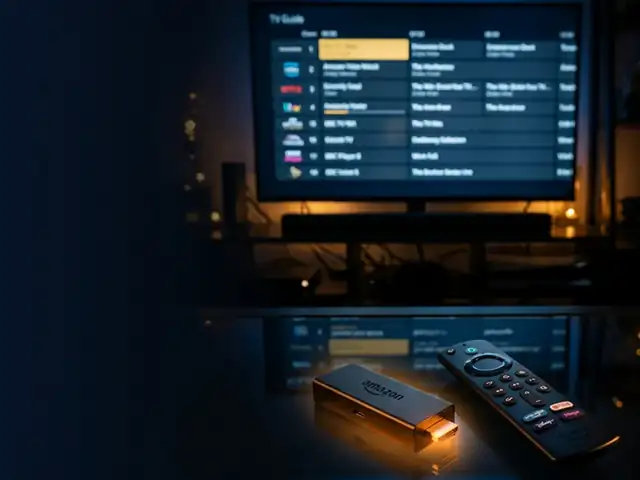
How to set up the IPTV EPG in your player
To add an EPG source to IPTV players that do not fetch one themselves, paste the guide address into the player's EPG setting and refresh. Kodi is a typical example: the official wiki page for its IPTV add-on confirms that it takes guide data in XMLTV format.
IPTV Smarters Pro
With an Xtream Codes login, select Install EPG on the home screen and wait for the download. With an M3U login, first enter the guide address in the settings, then install. If listings are an hour out, use EPG time shift in the settings. See how to set up IPTV Smarters Pro.
TiviMate
With an Xtream Codes login, the guide is added automatically when you add the playlist. With an M3U link, TiviMate asks for a guide address during set-up. Afterwards, the EPG section of the settings lets you add or change sources, set how often the guide updates, choose a time offset, and decide how many past days to keep, which matters for catch-up. To attach a schedule to a single channel by hand, long press the channel and choose to assign its EPG. See the TiviMate guide.
Smart IPTV and other television players
These load the guide in the same way as the playlist: through the developer's website. If the upload page has a box for an EPG address, paste it there. Otherwise the app relies on a guide address written inside the playlist. See the Smart IPTV guide.
Kodi
In the settings of the PVR IPTV Simple Client add-on, open EPG settings and enter the XMLTV address. The same screen has a time shift setting. Restart Kodi afterwards.
Jellyfin and Plex
Both want an XMLTV address as a separate guide provider, and both show a screen for matching channels to guide entries. See IPTV on Plex and Kodi.
VLC
VLC plays streams and has no programme guide grid. If you want listings, use a different player. Our IPTV player comparison shows how well each one presents the guide.

Fixing a blank guide

If there are no listings anywhere, the guide data has not reached your player. Work through these in order.
- Check that a guide address is set. In your player's EPG settings, confirm there is a source. With an M3U login, this is the step most often missed.
- Run a manual update. Every player has one, usually labelled update EPG, refresh guide or install EPG. Wait for it to finish; a large guide can take a few minutes.
- Check the device's date and time. If the clock is wrong, every listing appears to be in the past or the future and the guide looks empty. Set the date and time to automatic.
- Restart the player, then the device.
- Clear the player's cache from your device's application settings. This removes stored guide data and forces a fresh download. It keeps your login.
- Test the guide address. Paste it into a web browser on a computer. A working address downloads a file. An error page means the address is wrong or has changed.
- Ask your provider. If the address is correct and the guide is still empty on every device, the guide may be down at their end.
In practice, steps one to three resolve most blank guides.

Fixing a guide that is an hour out
This is the most recognisable guide fault. Every programme is there, and every one of them is shown an hour early or an hour late.
The cause is a disagreement about time zones. The guide data states its times with an offset. If that offset is wrong, or your player ignores it, or your device is set to the wrong zone, everything shifts by a fixed amount.
In the UK it commonly appears twice a year, when the clocks go forward on the last Sunday of March and back on the last Sunday of October. Guide data that was correct the day before can be an hour out the day after, until the source catches up.
The fix takes ten seconds.
| Player | Setting |
|---|---|
| IPTV Smarters Pro | EPG time shift, in settings |
| TiviMate | Time offset, in the EPG settings, for each guide source |
| Kodi | EPG time shift, in the add-on's EPG settings |
| Smart IPTV | A time shift option in the app's settings |
Move the offset by one hour in the direction needed, and check a programme you know the time of. If the fault appeared at a clock change, remember to set it back when the guide source corrects itself, or you will be an hour out in the other direction.
Before adjusting anything, glance at the device's own clock. If the device is set to the wrong time zone, fix that instead, because it affects more than the guide.

Fixing gaps: some channels have listings, others do not
A guide that is full for most channels and empty for a few is a matching problem, or a missing-data problem. They look the same and have different fixes.
The data is missing. The guide source simply has no schedule for that channel. Small, specialist and foreign channels are often not covered. Nothing you do in the player will create listings that do not exist. Ask your provider.
The data is there, and does not match. The schedule exists in the guide under one identifier, and the channel in your list carries a different one, or none.
To find out which, and to fix the second case:
- In a player that supports it, such as TiviMate, long press the channel and choose to assign its EPG.
- Search the guide's channel list for the channel's name.
- If it is there, select it. Listings appear at once, and the player remembers the choice.
- If it is not there, the data is missing.
A few situations cause mismatches again and again.
- Regional versions. The main public channels have regional variants with different schedules at certain times. If your channel is the London version and the guide entry is for another region, most listings will be right and the regional programmes wrong.
- Plus-one channels. A channel that shows everything an hour later needs the main channel's schedule shifted by an hour. Good guide sources include these separately; poor ones do not.
- HD and standard versions. These share a schedule but may carry different identifiers.
- Renamed channels. When a channel changes its name, the guide and the playlist can fall out of step for a while.

EPG, catch-up, recording and reminders
Several features that people value are built directly on the guide, which is why a poor guide costs more than convenience across any internet television (IPTV) service.
Catch-up. Some services keep recent programmes available for a few days. You reach them by scrolling back through the guide and selecting a programme that has already been shown. Without guide data for the past, there is nothing to select. In TiviMate, the setting for how many past days of guide to keep controls how far back you can go.
Scheduled recording. In players that record, you choose a programme from the guide and the player records between its start and end times. If the guide is an hour out, so is the recording. See how to record from IPTV for the players that do it.
Reminders. A player can alert you when a programme is about to start, using the guide's start time.
Search. Searching for a programme by title only works if titles are in the guide.
If you rely on any of these, the guide is not a nicety. It is the foundation.

Why the guide is slow to load
The first guide download after setting up a player can take minutes, and on some devices it never seems to finish. There are three reasons.
The file is big. Listings for hundreds of channels over a week add up.
The device is small. Streaming sticks and Smart TVs have limited memory and modest processors. Reading and sorting a large guide is hard work for them.
The player processes everything, including channels you have hidden.
What helps:
- Let the first download finish. Later updates are quicker.
- Use a smaller channel list. If your provider can supply a playlist without categories you never watch, the guide to match it is smaller too.
- Reduce the days of guide stored, if your player has the option. Three days ahead is enough for most people.
- Update at a quiet time. Set automatic updates for the early morning, not the evening.
- Use a more capable device for the main television. Our IPTV box buying advice explains what to look for.

IPTV players with a full EPG, by device
A guide is only as useful as the player that shows it. These players show a proper grid on each kind of device.
| Device | Player with a full guide | Good to know |
|---|---|---|
| Android TV, Google TV and Fire OS | TiviMate | The closest thing to a set-top box guide |
| Almost any device | IPTV Smarters Pro | A simpler guide that loads by itself with an Xtream Codes login |
| Apple TV, iPhone and iPad | iPlayTV, UHF or IPTVX | Grid guides; see IPTV on Apple TV |
| Windows, Mac and Linux | Kodi with the PVR IPTV Simple Client | Free, and takes an XMLTV link |
| A home server | Jellyfin or Plex | One guide for every screen in the house |
| Any computer | VLC | Plays the channels, but has no guide |
On Linux, Kodi is the most complete IPTV player with an EPG, and most distributions offer it in their software centre.

What a good EPG looks like
When you are trying a service, the guide is one of the quickest ways to judge how carefully it is run. Five minutes with the grid tells you a great deal.
| Check | A good guide | A poor guide |
|---|---|---|
| Coverage | Listings for nearly every channel | Large gaps |
| Accuracy | Matches the broadcaster's published schedule | Programmes at the wrong times |
| Depth | Several days ahead | Ends tonight or tomorrow |
| Detail | Titles and descriptions | Titles only, or placeholders |
| Regional and plus-one channels | Correct for each | Copied from the main channel |
| Set-up | Loads automatically with your login | Needs addresses and manual matching |
| Upkeep | Stays correct through clock changes | Goes an hour out twice a year |
A service that gets the guide right has usually taken care over the rest. One that leaves it blank has shown you what it thinks of the details. Our page on testing an IPTV service includes the guide in its checklist.
Every one of our plans includes a TV guide for the live channels:
IPTV Premium UK
1 screen
Best for: One HD or Full HD television
1
screen at a time
HD and Full HD
picture quality
Term in months
You save £20.00 on 12 months
- HD and Full HD channels on one screen.
- Live TV channels
- TV guide (EPG) for the live channels
- Films and series on demand
- Catch-up TV
- Support 24 hours a day, every day

Pay by Visa, Mastercard, PayPal, Apple Pay, Google Pay or bank transfer
IPTV 4K Ultra
1 screen
Best for: A 4K television and fast broadband
1
screen at a time
Up to 4K
picture quality
Term in months
You save £20.00 on 12 months
- Everything in Premium UK, plus 4K channels, on one screen.
- Live TV channels
- TV guide (EPG) for the live channels
- Films and series on demand
- Catch-up TV
- Support 24 hours a day, every day
Pay by Visa, Mastercard, PayPal, Apple Pay, Google Pay or bank transfer
IPTV 8K Ultra Max
1 screen
Best for: The highest level we sell, on a 4K or 8K television
1
screen at a time
4K, plus some 8K
picture quality
Term in months
You save £30 on 12 months
- Everything in 4K Ultra, plus a selection of 8K content, on one screen.
- Live TV channels
- TV guide (EPG) for the live channels
- Films and series on demand
- Catch-up TV
- Support 24 hours a day, every day
Pay by Visa, Mastercard, PayPal, Apple Pay, Google Pay or bank transfer
IPTV Family Pack
2 screens
Best for: Homes that watch on 2 to 5 screens at once
2
screens at once
Up to 4K
picture quality
Screens at the same time
Term in months
You save £30 on 12 months
- 4K Ultra quality on 2 screens at the same time.
- Live TV channels
- TV guide (EPG) for the live channels
- Films and series on demand
- Catch-up TV
- Support 24 hours a day, every day
Pay by Visa, Mastercard, PayPal, Apple Pay, Google Pay or bank transfer
Not ready to choose? Try IPTV King for 30 days for £10, on your own broadband and devices.
Try 30 days for £10For faults that go beyond the guide, see how to fix IPTV that is not working. The rest of our set-up and troubleshooting articles are collected in our IPTV blog, and what each plan costs is on the plans and prices page.
Questions people ask
What is EPG on IPTV?
EPG stands for electronic programme guide. On IPTV it is the on-screen schedule that shows the title, time and description of what is on each channel, now and in the coming days. The data comes from a separate source from the channels themselves, which is why a channel can play perfectly and still show no listings.
Where do I get an EPG source for IPTV?
From your IPTV provider. A service normally supplies a guide that matches its own channels, either automatically with an Xtream Codes login or as a separate guide address to enter alongside an M3U link. Third-party guide sources exist as well, but they need matching to your channels by hand and are a fallback, not a first choice.
Why is my IPTV guide blank?
The usual causes are that no guide address has been entered, the guide has not been downloaded or refreshed, or the date and time on your device are wrong. Enter or check the guide address, run a manual update in your player's EPG settings, and confirm the device clock is set automatically.
Why is my IPTV guide an hour out?
Your device and the guide file are using different time zones, a mismatch that often appears after the clocks change in March or October. Use the EPG time shift or time offset setting in your player to move all listings forward or back by an hour.
Why do some channels have a guide and others do not?
Either the guide source contains no listings for those channels, or the channel's identifier in your playlist does not match the identifier in the guide. Players such as TiviMate let you assign guide data to a channel by hand, which fixes the second case. The first can only be fixed by your provider or a different guide source.
Does the EPG affect catch-up and recording?
Yes. Catch-up lets you choose an earlier programme from the guide, and scheduled recordings use the guide's start and end times. If the guide is missing or its times are wrong, catch-up has nothing to choose from and recordings start at the wrong moment.
Related guides
 TiviMate IPTV player: how to set it up and get the best from itInstall it, add your service, set the buffer and guide properly, and decide whether Premium is worth it.16 min read
 IPTV M3U playlists: what they are, how they work and how to load oneWhat is inside the file, M3U versus M3U8, loading a playlist in each player and fixing one that fails.16 min read
 IPTV not working: how to find the fault and fix itTwo quick tests to find where the fault is, a table of symptoms and causes, and the fix for each.18 min read
 IPTV Smarters Pro: what it is, how to set it up and how to fix itWhat the app does, how to download it safely, how to sign in, and fixes for the common faults.21 min read