
Sky Glass IPTV in brief
- Sky Glass and Sky Stream cannot install IPTV apps. There is no app store for outside apps and no way to install an APK file.
- Downloader codes and "Sky Glass IPTV APKs" found online cannot work on Sky Glass. Avoid the sites that offer them.
- What works: a streaming stick in one of the three HDMI ports, with the player on the stick.
- Your login goes into the player on the stick. Sky Glass just shows the picture and plays the sound.

Can you get IPTV on Sky Glass?
Written as one word, Skyglass IPTV or IPTV Skyglass, the question is the same. So is the answer for the newer set: on Sky Glass Gen 2, IPTV apps cannot be installed either.
Yes, and once it is set up it is hard to tell the difference from an app built into the television. But it does not work the way most people expect.
Sky Glass, often searched for as Skyglass, is a television with Sky built in. Everything it shows, including Sky's own channels, arrives over broadband instead of a satellite dish. That leads many people to assume it must be able to run any internet television app, including an IPTV player. It cannot. The apps on Sky Glass are the ones Sky chooses to offer, and IPTV players are not among them.
The way round it is the same one that works on any television whose own apps fall short: a streaming stick. A stick plugged into one of Sky Glass's HDMI ports brings its own app store, runs the player of your choice and sends the picture to the screen. Sky Glass keeps doing everything it did before, and you switch between the two with the input menu.
| What you want to do | On Sky Glass itself | With a stick in an HDMI port |
|---|---|---|
| Install IPTV Smarters Pro or TiviMate | Not possible | Yes |
| Install an APK file | Not possible | Yes, on sticks that run Fire OS or Android TV |
| Use a Downloader code | Not possible | Yes, on Fire OS sticks |
| Enter an IPTV username and password | Nowhere to enter it | Yes, in the player |
| Watch IPTV in 4K | Not applicable | Yes, with a 4K stick and a 4K channel |
| Keep using Sky | Yes | Yes, on the Sky Glass input |

Why there is no IPTV app on Sky Glass
People search for a Skyglass IPTV app as if it were hidden in a menu. It is not there to find.
Sky Glass runs Sky's own software. Unlike a Samsung, LG or Google TV set, it has no general app store where outside developers publish their apps. The apps you see are the ones Sky has agreed to carry, mostly the big streaming services and the UK broadcasters' own apps.
That has two consequences for IPTV.
There is no store to install a player from. On an Android TV set you would open the Play Store and download TiviMate or IPTV Smarters Pro. Sky Glass has no equivalent, and Sky does not carry general IPTV players.
There is no way to install an app from a file. Android televisions and Fire TV sticks can install apps from an APK file, the standard Android app format. Sky Glass is not an Android device. It cannot open an APK, and there is no setting that changes this.
The same is true of every Sky Glass model so far, including the second generation and the lower-priced Sky Glass Air that Sky introduced in 2025. A software update could in theory change it, but nothing Sky has said suggests it will.

Sky Glass IPTV APKs, Downloader codes and other dead ends
A "Sky Glass IPTV APK download" cannot work, because Sky Glass does not run Android and cannot open an APK file. Sky Glass IPTV questions on Reddit end in the same place as this page: an HDMI port.
Search for Sky Glass IPTV and you will find pages offering a Sky Glass IPTV APK, a Sky Glass Downloader code, or a special app "made for Sky Glass". None of them can do what they promise.
- A Sky Glass IPTV APK. An APK installs on Android. Sky Glass does not run Android, so there is nothing to install it on. Pages that offer one are usually after the download itself: modified app files are one of the most common ways malware reaches streaming devices.
- A Downloader code for Sky Glass. Downloader is an app for Fire TV and Android devices. Its short codes are typed into Downloader on those devices to fetch a file. Sky Glass has no Downloader app, so a code has nowhere to go. Codes are useful on the stick you plug into Sky Glass, and our page on IPTV Smarters Pro on a Firestick explains how they work there.
- A "Sky Glass IPTV subscription". There is no such thing as a subscription that only works on Sky Glass. Any IPTV subscription that works with standard player apps works on Sky Glass through a stick. Be wary of sellers who use the Sky name to suggest they are selling Sky's channels: our page on IPTV and UK law explains where the line falls.
- Activation codes and "cracked" versions. Anything sold as a code that unlocks paid channels on Sky Glass is either a scam or an unlicensed service, and often both.
Owners on Sky's own community forum reach the same conclusion: the answer is a stick. If a page about Sky Glass IPTV tells you to download a file, close it. The method that works never involves downloading anything to Sky Glass.

The method that works: a streaming stick in an HDMI port

Every Sky Glass model has three HDMI ports on the back. One of them supports eARC, which sends sound to a soundbar or home cinema system. Either of the other two is ideal for a streaming stick.
Once a stick is plugged in, Sky Glass simply becomes the screen and the speakers for it. The stick runs the player, holds your login and fetches the channels over your Wi-Fi or a network cable.
Which stick to choose
| Device | Players available | Notes for Sky Glass |
|---|---|---|
| Fire TV Stick 4K Max (2023) or Fire TV Stick 4K (2023) | TiviMate, IPTV Smarters Pro and others, through Fire OS | Low cost; check the model runs Fire OS, not Vega OS |
| Google TV Streamer | TiviMate and others from the Play Store | Network port built in; nothing to sideload |
| Other Google-certified Google TV sticks | Play Store players | A good budget alternative |
| Apple TV 4K | Players from the App Store | Superb hardware; fewer players, most of them paid |
| Roku stick | No proper IPTV players | Not a good choice for IPTV |
Two cautions apply. The Fire TV Stick 4K Select and the Amazon sticks after it use Vega OS, and the popular IPTV players will not install on that; our IPTV Firestick page explains how to tell which is which. And a Roku stick is no better than Sky Glass itself for IPTV, for reasons set out on our page on Roku, Xbox, MAG and Chromecast.
If you want to compare every option, including boxes with a built-in network port, see our device comparison.
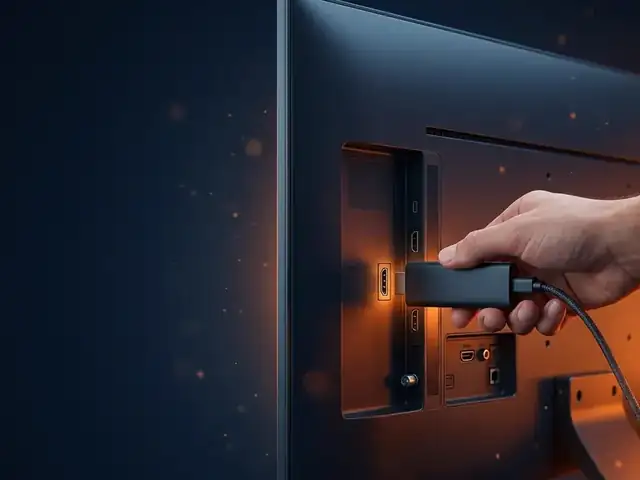
How to set up IPTV on Sky Glass, step by step
The whole process takes about fifteen minutes, most of it spent installing the player.
- Choose a free HDMI port. Use any of the three. If a soundbar is connected, leave the eARC port for it.
- Plug in the stick and power it from the mains. Use the adapter that came with the stick. A USB port on a television often cannot supply enough power, and a stick that is short of power restarts at random.
- Switch Sky Glass to that HDMI input. Open the inputs menu on Sky Glass and choose the port the stick is in. The stick's set-up screen appears.
- Set up the stick. Connect it to your Wi-Fi, or to the router with a network adapter, and sign in to its app store account.
- Install a player. TiviMate or IPTV Smarters Pro are good choices. On a Fire OS stick, some players are installed from the developer's website using Downloader.
- Enter your login in the player. Choose the Xtream Codes option and type the server address, username and password from your provider.
- Watch. The channel list and the programme guide load. From now on, switching to that input takes you straight to IPTV.
A refused login almost always comes down to one wrong character. Our page on Xtream Codes troubleshooting lists the usual mistakes, and our IPTV player apps page compares the players in more detail.
Your IPTV username and password
People often look for a place on Sky Glass to enter IPTV login details. There is none, and there does not need to be. Your username, password and server address belong in the player on the stick. Sky Glass never sees them.
Keep those details private. Anyone who has them can use your subscription, and posting them in a forum to ask for help is the quickest way to lose it.

Switching between Sky and IPTV

Living with two sources on one television is easier than it sounds.
Use the inputs menu. Sky's own channels and apps are on the Sky Glass home screen. IPTV is on the HDMI input the stick is connected to. Switching takes two or three presses.
Let the stick wake the television. Most sticks and televisions support HDMI-CEC, a standard that lets one device control the other. With it switched on, pressing a button on the stick's remote can turn the television on and switch it to the right input, and the stick's remote can often control the volume.
Keep two remotes, or learn one. Many people keep the Sky Glass remote for Sky and the stick's remote for IPTV. It quickly becomes second nature.

Sky Stream: the same answer
Sky streaming IPTV searches usually mean the Sky Stream puck. IPTV on Sky streaming hardware of either kind works the same way: not on the device, but beside it.
Sky Stream is a small box that brings the same Sky experience to an ordinary television over broadband. It runs the same software as Sky Glass, and it cannot install IPTV players or APK files either.
The difference is that with Sky Stream you plug the stick into the television, not into the Sky box. Sky Stream takes one HDMI port, the stick takes another, and you switch between them with the television's own input button. Everything else on this page applies unchanged.
If your television is a Smart TV that can run a player itself, you may not need a stick at all: our page on Smart TVs that run IPTV players explains which televisions can.

Picture quality on Sky Glass
Sky Glass is a 4K television with HDR, so it can show the full detail of an Ultra HD channel. Getting a genuine 4K picture from IPTV depends on three other things lining up.
- A 4K stick. An HD stick plays every channel at HD resolution, however good the screen.
- A 4K channel. Most UK television is made in HD or Full HD. A channel only shows 4K detail if it was sent in 4K.
- Enough broadband. Allow about 25 Mbps for each 4K stream.
Turn on frame rate matching in the stick's display settings. UK channels are made at 50 frames per second, and matching avoids a slight judder on sport and fast movement. Our page on watching IPTV in 4K explains how to check what resolution a channel really is.
Sound through the Sky Glass speakers
Sky Glass has its speakers built in, so a stick needs nothing extra. The sound travels down the same HDMI cable as the picture and plays through the television's speakers, or through your soundbar if one is connected to the eARC port.
If you hear nothing, check the stick's audio output setting. Choosing an automatic or stereo setting usually fixes silent channels, and our IPTV fault checklist covers the other causes.

Broadband: Sky Glass and IPTV share the line
Sky Glass gets all of its television over broadband. Add an IPTV stick and both share the same connection, so it is worth knowing how much each uses.
| What is playing | Broadband to allow |
|---|---|
| IPTV in HD on the stick | 6 Mbps |
| IPTV in Full HD on the stick | 10 Mbps |
| IPTV in 4K on the stick | 25 Mbps |
| IPTV on the stick and Sky on another television | Add the two together, plus spare capacity |
Only the source on screen uses the connection, so switching from Sky to IPTV on the same Sky Glass does not double the load. Problems usually come from Wi-Fi rather than the line itself; Ofcom's broadband checker shows what your line should deliver. A stick with a network cable, or one placed where the Wi-Fi is strong, solves most stalling. Our page on IPTV buffering has a calculator for your household.

When Sky Glass IPTV is not working
| What you see | Likely cause | What to do |
|---|---|---|
| "No signal" on the HDMI input | The stick is off, or on a different port | Check the port number and the stick's power |
| The stick keeps restarting | Not enough power from a USB port | Use the stick's mains adapter |
| The player says the login failed | A typing mistake, or an expired subscription | Re-enter the details exactly |
| Channels stall every few minutes | Weak Wi-Fi where the television is | Use a network adapter, or move the router |
| Picture but no sound | The stick's audio setting | Choose an automatic or stereo output |
| The stick's remote does nothing | Pairing lost, or batteries | Re-pair the remote; replace the batteries |
| Sky Glass will not switch inputs by itself | HDMI-CEC switched off | Turn on HDMI-CEC on the stick and the television |
If every channel fails on every device, the fault is not Sky Glass. Start with the full IPTV troubleshooting list.

Using IPTV King on Sky Glass
As a Sky Glass IPTV service, IPTV King runs on the stick, not on the television, so nothing about your Sky account changes. For IPTV, UK Sky Glass owners need only a spare HDMI port. That is the whole of Sky Glass IPTV in the UK: one stick, one login, one input.
IPTV King works with the standard player apps, so it works on Sky Glass through a stick exactly as described above. There is nothing special to order and nothing to install on Sky Glass itself.
IPTV Premium UK
1 screen
Best for: One HD or Full HD television
1
screen at a time
HD and Full HD
picture quality
Term in months
You save £20.00 on 12 months
- HD and Full HD channels on one screen.
- Live TV channels
- TV guide (EPG) for the live channels
- Films and series on demand
- Catch-up TV
- Support 24 hours a day, every day
Pay by Visa, Mastercard, PayPal, Apple Pay, Google Pay or bank transfer
IPTV 4K Ultra
1 screen
Best for: A 4K television and fast broadband
1
screen at a time
Up to 4K
picture quality
Term in months
You save £20.00 on 12 months
- Everything in Premium UK, plus 4K channels, on one screen.
- Live TV channels
- TV guide (EPG) for the live channels
- Films and series on demand
- Catch-up TV
- Support 24 hours a day, every day
Pay by Visa, Mastercard, PayPal, Apple Pay, Google Pay or bank transfer
IPTV 8K Ultra Max
1 screen
Best for: The highest level we sell, on a 4K or 8K television
1
screen at a time
4K, plus some 8K
picture quality
Term in months
You save £30 on 12 months
- Everything in 4K Ultra, plus a selection of 8K content, on one screen.
- Live TV channels
- TV guide (EPG) for the live channels
- Films and series on demand
- Catch-up TV
- Support 24 hours a day, every day
Pay by Visa, Mastercard, PayPal, Apple Pay, Google Pay or bank transfer
IPTV Family Pack
2 screens
Best for: Homes that watch on 2 to 5 screens at once
2
screens at once
Up to 4K
picture quality
Screens at the same time
Term in months
You save £30 on 12 months
- 4K Ultra quality on 2 screens at the same time.
- Live TV channels
- TV guide (EPG) for the live channels
- Films and series on demand
- Catch-up TV
- Support 24 hours a day, every day
Pay by Visa, Mastercard, PayPal, Apple Pay, Google Pay or bank transfer
Not ready to choose? Try IPTV King for 30 days for £10, on your own broadband and devices.
Try 30 days for £10If the Sky Glass in the living room is not the only television in the house, think about how many screens will be watching at the same moment. Our plans for one screen suit a single television, and the multi-screen Family Pack covers two to five screens at once. Every plan and price is on the IPTV plans and prices page.
Our trial: 30 days for £10
Try IPTV King for 30 days for £10, on your own broadband and your own devices, before you choose a longer plan. Order the trial on WhatsApp and your login arrives in the same chat once it is paid.
The trial is the simplest way to check that the stick, the player and your Wi-Fi all work together on Sky Glass before you choose a plan. Our IPTV free trial page has a checklist to work through.

Sky Glass or another television for IPTV?
If you are choosing a television and IPTV matters to you, it is worth knowing how the options compare.
| Television | Runs an IPTV player itself | Best way to add IPTV |
|---|---|---|
| Sky Glass, any model | No | A stick in an HDMI port |
| A television with Google TV built in | Yes, from the Play Store | Nothing extra needed |
| Samsung or LG | Some players, often with a fee | The built-in player, or a stick |
| A television with a Fire TV system | Yes | Nothing extra needed |
| Any television with an HDMI port | Depends on the set | A stick always works |
Sky Glass is a perfectly good IPTV screen once a stick is in place. The stick costs about the same as a takeaway for two, takes up no space behind the television, and gives you a better choice of players than most built-in systems. For more on the differences between Sky's service and ours, see how Sky compares with IPTV King.
Questions people ask
Can you get IPTV on Sky Glass?
Yes, but not through an app on Sky Glass itself. Sky Glass runs Sky's own software and only offers the apps Sky provides, so IPTV players cannot be installed on it. Plug a streaming stick, such as a Fire TV Stick that runs Fire OS or a Google TV device, into one of its HDMI ports, install a player on the stick and sign in there. Our Firestick page explains which sticks to choose.
Can I install IPTV Smarters on Sky Glass?
No. IPTV Smarters Pro, TiviMate and the other popular players are Android, Fire TV and Apple apps. Sky Glass is none of those and has no app store for outside apps. Install the player on a stick plugged into Sky Glass instead, and it works exactly as it would on any other television.
Is there a Sky Glass IPTV APK or Downloader code?
No. An APK is an Android app file, and Sky Glass does not run Android or install files. Downloader is an app for Fire TV and Android devices, so its codes only work on those devices. A website offering a Sky Glass IPTV APK or a Sky Glass Downloader code is offering something that cannot work, and files from such sites are a common way to spread malware.
Which HDMI port should I use on Sky Glass?
Any of the three works for a streaming stick. If you connect a soundbar, keep the port marked eARC free for it and use one of the other two for the stick. Power the stick from its mains adapter rather than a USB port on the television, so it stays on and does not restart.
Does IPTV work on Sky Stream?
Not on the Sky Stream box itself, which runs the same software as Sky Glass and cannot install outside apps. Plug a streaming stick into a spare HDMI port on your television instead, and switch between the Sky Stream input and the stick's input on the television.
Where do my IPTV username and password go on Sky Glass?
Into the player app on the stick, never into Sky Glass. Sky Glass has nowhere to enter an IPTV login. Open the player on the stick, choose the Xtream Codes login, and type the server address, username and password your provider gave you. Our page on Xtream Codes logins explains each field.
Which stick is best for IPTV on Sky Glass?
One that runs the popular players: a Fire TV Stick on Fire OS, such as the 4K Max from 2023, or a Google TV Streamer, which adds a network port. Skip any Fire TV stick on Vega OS, the 4K Select among them, since IPTV players will not install on it.
Related guides
 IPTV Firestick: which model to buy, which apps to use and how to set it upWhich Fire TV models still run IPTV players, the best apps, set-up and a stable picture.17 min read
 IPTV box: the best devices for IPTV in the UKSticks, boxes, Apple TV and Smart TVs compared for IPTV, with the specifications that matter and the boxes to avoid.17 min read
 MAG box IPTV, Roku, Xbox, PlayStation and Chromecast: what works on eachWhat works on MAG boxes, Roku, Xbox, PlayStation and Chromecast, the workarounds, and when a cheap stick is the better answer.15 min read
 IPTV subscription UK: IPTV King plans, prices and what each costs per monthEvery plan and its price for each term, what a subscription includes, and how to order.34 min read