

The short version
- A player app is only a window. Your service supplies the channels; the app decides how pleasant they are to browse.
- TiviMate is the best experience on Android TV and Fire OS. IPTV Smarters Pro is the easiest place to start and runs almost everywhere.
- Samsung and LG televisions cannot run Android apps, so they need their own players, such as Smart IPTV.
- Install from an official store or the developer's own site. Modified APKs are a common source of malware.

What an IPTV player does, and what it does not
Newcomers often expect an IPTV app to be like the BBC iPlayer or Netflix app: install it, open it, and there is something to watch. An IPTV player is a different kind of thing (if IPTV itself is new to you, start with the basics of IPTV). It is closer to a web browser. A browser shows you websites but contains none; a player shows you channels but contains none.
When you enter your login, the player does four jobs.
- It contacts your service and downloads the list of channels and on-demand titles.
- It downloads the programme guide and matches each listing to the right channel.
- It organises all of that into menus you can move through with a remote, a mouse or a finger.
- It plays the stream you choose, buffering a few seconds ahead to smooth over small dips in your connection.

That is all. The picture quality of a channel, whether it is available, and how many channels there are all come from the service (and, for Ultra HD, from your device and broadband too: see what 4K IPTV involves). The app decides everything else: how fast it feels, how the guide looks, whether you can record, and whether your grandmother can find the news without phoning you.
This division is why choosing an app is worth a few minutes. The same subscription can feel clumsy in one player and polished in another. And because the login belongs to you, not to the app, you are free to try several. If you do not have a service yet, ours is just below.
The service for your IPTV player: IPTV King plans
An app needs a service to play. A IPTV King login works in the standard players on this page, as an Xtream Codes login or an M3U link, and it stays yours if you change app. Plans start at £18.99 for 3 months, with no contract, and every price and term is also on our page of UK IPTV subscription plans.
IPTV Premium UK
1 screen
Best for: One HD or Full HD television
1
screen at a time
HD and Full HD
picture quality
Term in months
You save £20.00 on 12 months
- HD and Full HD channels on one screen.
- Live TV channels
- TV guide (EPG) for the live channels
- Films and series on demand
- Catch-up TV
- Support 24 hours a day, every day

Pay by Visa, Mastercard, PayPal, Apple Pay, Google Pay or bank transfer
IPTV 4K Ultra
1 screen
Best for: A 4K television and fast broadband
1
screen at a time
Up to 4K
picture quality
Term in months
You save £20.00 on 12 months
- Everything in Premium UK, plus 4K channels, on one screen.
- Live TV channels
- TV guide (EPG) for the live channels
- Films and series on demand
- Catch-up TV
- Support 24 hours a day, every day
Pay by Visa, Mastercard, PayPal, Apple Pay, Google Pay or bank transfer
IPTV 8K Ultra Max
1 screen
Best for: The highest level we sell, on a 4K or 8K television
1
screen at a time
4K, plus some 8K
picture quality
Term in months
You save £30 on 12 months
- Everything in 4K Ultra, plus a selection of 8K content, on one screen.
- Live TV channels
- TV guide (EPG) for the live channels
- Films and series on demand
- Catch-up TV
- Support 24 hours a day, every day
Pay by Visa, Mastercard, PayPal, Apple Pay, Google Pay or bank transfer
IPTV Family Pack
2 screens
Best for: Homes that watch on 2 to 5 screens at once
2
screens at once
Up to 4K
picture quality
Screens at the same time
Term in months
You save £30 on 12 months
- 4K Ultra quality on 2 screens at the same time.
- Live TV channels
- TV guide (EPG) for the live channels
- Films and series on demand
- Catch-up TV
- Support 24 hours a day, every day
Pay by Visa, Mastercard, PayPal, Apple Pay, Google Pay or bank transfer
Not ready to choose? Try IPTV King for 30 days for £10, on your own broadband and devices.
Try 30 days for £10
The best IPTV player for each device
People call these programs by several names: IPTV streaming apps, an IPTV streaming application, an IPTV player application. They are all the same kind of software. So there is no single best app for IPTV, only the best IPTV streaming app for the screen you watch on.
Start with the device you own, because that narrows the field more than anything else. An IPTV application written for one system will not run on another. Android apps do not run on a Samsung television, and Apple's App Store has its own separate set.
| Device | First choice | Good alternative | Worth knowing |
|---|---|---|---|
| Fire TV Stick running Fire OS | TiviMate | IPTV Smarters Pro | Both are installed from outside the Amazon Appstore |
| Android TV or Google TV box | TiviMate | OTT Navigator | Available from the Google Play Store |
| Samsung or LG Smart TV | Smart IPTV | A plug-in stick | The television's own store decides what is available |
| iPhone and iPad | Smarters Player Lite | IPTVX | Apple's store rules limit the choice |
| Apple TV | IPTVX | iPlayTV | Paid apps dominate here |
| Android phone or tablet | IPTV Smarters Pro | VLC | TiviMate is built for remotes, not touch |
| Windows PC | IPTV Smarters Pro | VLC | VLC plays the stream but has no guide grid |
| Mac | IPTV Smarters Pro | VLC or IINA | Fewer dedicated players than Windows |
Each device has its own guide on this site: the Firestick, Smart TVs, Sky Glass, Apple TV, iPhone and iPad, MAG, Roku and Xbox, and Windows and Mac. If you are still deciding what to buy, start with our comparison of streaming boxes and sticks.
The main IPTV apps compared
There are hundreds of IPTV apps, and most of them are copies of a few originals. These are the ones that matter, with what each is for.

| App | Runs on | Login types | Programme guide | Recording | Cost |
|---|---|---|---|---|---|
| IPTV Smarters Pro | Android, Fire OS, iOS, Windows, Mac, some Smart TVs | Xtream Codes, M3U | Basic list and grid | On Android | Free, with a low-cost upgrade |
| TiviMate | Android TV, Fire OS | Xtream Codes, M3U, Stalker portal | Excellent grid | Premium tier | Free tier; paid Premium |
| Smart IPTV | Samsung, LG, Android TV | M3U, uploaded through a web page | Good | No | One-off activation fee after a trial |
| OTT Navigator | Android, Android TV, Fire OS | Xtream Codes, M3U, Stalker portal | Very good, highly configurable | Yes | Free, with a paid tier |
| VLC | Almost everything | M3U | None | Basic | Free |
| Kodi | Almost everything | M3U, through an add-on | Good, once configured | Needs extra software | Free |
IPTV Smarters Pro
The usual starting point, and for good reason. It is free, it accepts both common login types, and there is a version for nearly every device, which means a household can use one familiar app everywhere. The layout is plain and the guide is not the best, but nothing about it is confusing. Our IPTV Smarters Pro set-up page covers every setting, and there is a separate Firestick walkthrough for Smarters.
TiviMate
The best television experience available on Android TV and Fire OS. Its guide looks like the one on a set-top box, channel changes are quick, and it is built around a remote control instead of a touchscreen. The free tier is enough to see whether you like it. Premium adds recording, catch-up, multiple playlists and backups, and it is the upgrade most regular viewers end up making. See setting up TiviMate.
Smart IPTV
The long-standing answer for Samsung and LG televisions. It works differently from the others: instead of typing a login into the TV, you upload a playlist link through the developer's website using an ID shown on the screen. After a free trial there is a one-off activation fee per television. Our page on setting up Smart IPTV explains the process and the errors people meet.
OTT Navigator, Televizo, iMPlayer and XCIPTV
Power users on Android TV, Google TV and phones often compare OTT Navigator, Televizo, iMPlayer and XCIPTV alongside TiviMate for multi-device touch support, built-in dual decoders and scheduled DVR—see our OTT Navigator, Televizo and XCIPTV guide for current Google Play availability and setup steps. On Apple TV 4K, iPhone and iPad, see our IPTVX, UHF and iPlayTV Apple player comparison.
VLC
Not an IPTV app as such, but a media player that will open almost any stream. It is ideal for testing whether a playlist works, and perfectly usable on a laptop. It has no programme guide grid, which makes it awkward as an everyday television replacement.
Kodi and Plex
Media-centre software that can show live channels next to your own film and music collections. Both take more setting up than a dedicated player. Our page on live TV in Kodi, Plex and Jellyfin explains when the effort is worth it.
The lookalikes
Search an app store and you will find dozens of players with names such as IPTV Stream Player, IPTV Pro or Smart Player. Many are built on the same foundations as the apps above and behave the same way once a login is entered. They are not necessarily bad, but an unfamiliar name gives you less to go on. Unless you have a reason to pick one, stick with a player that has a long record and a developer you can identify.

What makes a good IPTV app
Reviews tend to compare long feature lists. In daily use, six things decide whether you are happy with a player.
It accepts your login. Services issue either an Xtream Codes login or an M3U link, and a few use a portal address. A player that only takes one format limits your choices. Our explainers on Xtream Codes and M3U playlist links describe each.
The programme guide is good. This is where the apps differ most. A proper grid, with channels down the side and time along the top, makes browsing feel like television. A plain list of what is on now does not. If you care about one thing, care about this. Our IPTV EPG guide explains what the guide is and where it comes from.
It suits the way you control it. An app designed for a remote is miserable on a phone, and the reverse is worse. Choose a television app for the television and a touch app for the tablet.
Channel changes are fast. The delay between pressing a button and seeing a picture depends partly on the service and partly on the player. Good players start a stream in a second or two.
It lets you tidy up. Hiding the channel groups you never watch, setting favourites and reordering the list turn a list of a thousand entries into your own twenty.
The developer is still there. Apps that are updated regularly keep working when devices change. An app that was last updated three years ago is one system update away from breaking.

Free IPTV players, and what paid tiers add
The best free IPTV player is the one that costs nothing on the device you already own. Of the best free IPTV players, IPTV Smarters Pro is free on most devices, and VLC is a simple IPTV player for a computer. Looking for the best free IPTV app, or any free IPTV application, is reasonable, because even the best IPTV free apps come with no channels. What you pay for is the service, and the IPTV player is only the screen it appears on.
Most IPTV players are freeware: free to download and free to use, with optional paid extras. That runs from simple players such as VLC, which opens a playlist and nothing more, to full television-style apps such as TiviMate. On a phone, the best mobile IPTV app is usually a touch-friendly one such as IPTV Smarters Pro. For UK viewers, the best IPTV player is simply the one that suits the device in front of you; online players that run in a web browser are covered, with their risks, on our page about IPTV on a computer.
You do not need to pay for an app to watch. Every device has at least one capable free IPTV player, and for many households it is all they will ever need.
What money buys is comfort. The common upgrades look like this.
| Paid feature | What it does | Who wants it |
|---|---|---|
| Recording | Saves a programme to storage for later | Anyone used to a recorder box |
| Catch-up | Plays programmes from earlier, where the service supports it | Viewers who miss the start of things |
| Multiple playlists | Holds more than one service in a single app | People combining a paid service with free public playlists |
| Backup and restore | Saves your favourites and settings | Households with several devices |
| No advertising | Removes banners from the app's menus | Everyone, eventually |
Households watching on several screens at once also need a plan that allows it, such as our Family Pack for several screens.
Pricing models vary. TiviMate sells Premium as a yearly payment or a one-off lifetime purchase that covers several devices. Smart IPTV and several other Smart TV players charge a single activation fee per television. A few apps use a yearly subscription. None of these payments has anything to do with your television service: they go to the app's developer, and the app still shows nothing until a login is added.
A sensible approach is to begin with a free player, live with it for a couple of weeks, and pay for an upgrade only when you notice something missing. The cost of the service itself is a separate matter, set out on our IPTV price list.
IPTV apps that need activating
Some players, most of them for Samsung and LG televisions, are free for a trial period and then need activating: a one-off payment to the app's developer, tied to your television by its MAC address. Smart IPTV, Flix IPTV, Set IPTV, IBO Player and SmartOne IPTV all work this way.
- Note the MAC address the app shows on its first screen.
- Go to the developer's own website, not a link from a seller or a forum.
- Enter the MAC address and pay the one-off fee. The app unlocks on that television.
- Load your playlist, usually on the same website.
Activation pays for the app, not for any channels: you still need a service. Be wary of anyone who offers to activate an app for you as part of an IPTV deal. Our pages on Smart IPTV, IBO Player for Samsung and LG Smart TVs, Purple Smart TV player setup and IPTV apps for Smart TVs explain how each player is set up and paid for.
IPTV download and APK files: how to install safely
An IPTV player APK is the installer file for an Android app, used when a player is not in the app store. An APK for IPTV is safe when it comes from the developer and risky when it comes from anywhere else.
How you get an app matters as much as which one you choose. There are three routes, in descending order of safety.
An official app store. The Google Play Store, the Amazon Appstore, Apple's App Store and the stores built into Samsung and LG televisions all check the apps they carry; Google's Play Protect is one example. If the player you want is there, install it from there.
The developer's own website. Some players are not in every store. On Android and Fire OS you can install them from a file called an APK, the standard package format for Android apps. This is known as sideloading. It is safe when the file comes directly from the developer, and it is how many people install players on a Fire TV Stick.
Anywhere else. File-sharing sites, links in forum posts and modified versions that promise paid features for nothing. Avoid all of them. An app installed this way can do anything an app is able to do, including reading what you type; our page on IPTV malware and scams shows real examples.
A warning about download codes
On Fire TV devices, sideloading is usually done with an app called Downloader, which lets you type a short number in place of a long web address. Guides are full of these numbers. Treat them carefully: a code is only a shortcut, anyone can create one, and it can be pointed at any file. Two guides can give two different codes for what they both call the same app. Wherever possible, type the developer's real address so that you know where the file is coming from.
What has changed on Fire TV
Two developments have made the old advice unreliable.
First, from the Fire TV Stick 4K Select onwards, new Amazon sticks use Vega, a system that neither runs Android apps nor allows sideloading. The players that most people install on a Firestick are not available on them. Older sticks and some current models still run Fire OS and still allow sideloading.
Second, Amazon now blocks apps that it identifies as providing unlicensed content, on all of its Fire TV devices, including apps that were sideloaded. General-purpose players are not the stated target, but it is one more reason to use well-known apps from identifiable developers. Broadband providers block unlicensed streams too, as our page on ISP blocking explains. Our page on IPTV on a Firestick keeps track of which models to choose.
Never install an app because a seller tells you to
A legitimate service works with the established players and lets you choose between them. If a seller insists that you install its own app from a download link, you are being asked to run unknown software on your home network. Decline.
Android IPTV apps: phones, tablets and TV boxes
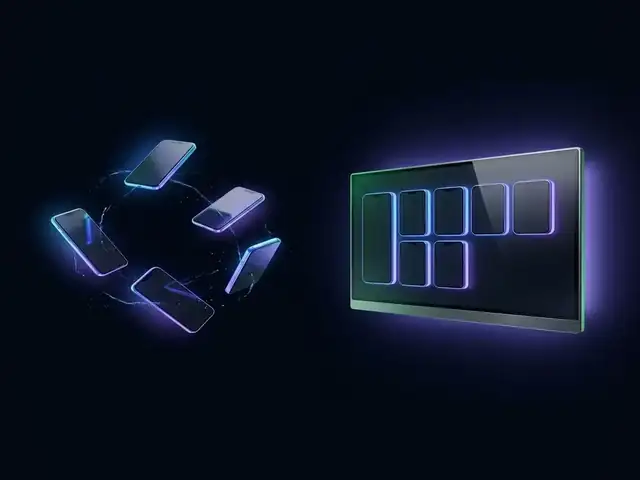
Android has the widest choice of players, but the word covers three different kinds of device, and the right app differs for each. Our page on the best IPTV player for Android goes through each in detail.
Android TV and Google TV boxes. These are built for a television and a remote, and they are where TiviMate and OTT Navigator are at their best. Both are in the Google Play Store on these devices.
Fire OS sticks. Amazon's system is based on Android and runs Android apps, but it uses Amazon's store instead of Google's. Several popular players are missing from that store and are sideloaded instead.
Phones and tablets. Touchscreens suit IPTV Smarters Pro and VLC. A phone is the quickest place to prove a fresh login too: you can type it in seconds, well before the television is ready.
One practical tip applies to all three: when an app asks for permissions, be wary of anything that has no business in a video player. Access to storage is reasonable if you want to record. Access to your contacts, messages or microphone is not.

How to set up any IPTV player
The details differ from app to app, but the pattern is always the same. Once you have done it in one player, you can do it in any.
- Install the app from your device's store or the developer's website.
- Choose how to add your service. The app will offer something like "Xtream Codes login" or "Add playlist". Pick the one that matches the details you were sent.
- Enter your details. For an Xtream Codes login that is a server address, a username and a password. For M3U it is one long link. Paste where you can; these are easy to mistype.
- Wait for the first load. The player now fetches your channels and the programme guide. This can take a minute or two the first time and is much quicker afterwards.
- Check the guide. Open the programme guide and make sure listings appear. If they do not, the app may need a separate guide address.
- Tidy up. Hide groups you will not use and mark your favourites.
If you have never done this before, our post on how to set up IPTV, step by step goes through it more slowly, with the reasons for each step.

When the app is the problem, and when it is not
People blame the player for most faults because it is the part they can see. Sometimes that is fair. Often it is not. This table helps you tell.
| Symptom | Usually the app | Usually something else |
|---|---|---|
| Login is rejected | A typing mistake in the address | An expired plan or the wrong details |
| Guide is empty | Guide address missing or not refreshed | The service has no data for that channel |
| Every channel buffers | Buffer setting too small | Broadband, Wi-Fi or the service |
| One channel will not play | Rarely | That channel is down at the source |
| App closes by itself | Too little memory, or an outdated version | Rarely |
| Sound and picture drift apart | Player or decoder setting | Occasionally the stream |
| Remote control is sluggish | A phone app being used on a TV | An underpowered device |
Two quick tests settle most cases. First, try the same login in a second player: if the fault follows the login, the app is innocent. Second, try a different streaming service in the same room: if that stutters too, look at your network. Our pages on fixing IPTV buffering and IPTV that is not working take it from there.

IPTV player set-up, app by app
Each of these goes into one app or one piece of the set-up in detail.
 IPTV Smarters Pro: what it is, how to set it up and how to fix itWhat the app does, how to download it safely, how to sign in, and fixes for the common faults.21 min read
 IPTV Smarters Pro Firestick: install it safely, with or without a Downloader codeA five-minute install for Fire OS sticks, how Downloader codes really work, and fixes for every install error.17 min read
 TiviMate IPTV player: how to set it up and get the best from itInstall it, add your service, set the buffer and guide properly, and decide whether Premium is worth it.16 min read
 Smart IPTV: how to set up, activate and fix the app on Samsung and LG TVsHow the web upload works, what activation costs, and how to fix the errors people meet most.16 min read
 Xtream IPTV logins: what Xtream Codes are and how to use themThe three parts of an Xtream login, where each goes, what the error messages mean and why free codes are a trap.16 min read
 IPTV M3U playlists: what they are, how they work and how to load oneWhat is inside the file, M3U versus M3U8, loading a playlist in each player and fixing one that fails.16 min read
 IPTV player for Windows and Mac: the best apps and how to set them upVLC, IPTV Smarters Pro and the alternatives compared, with set-up steps and the truth about web players.17 min read
 Plex IPTV, Kodi and Jellyfin: adding live channels to a media centreWhat Plex, Kodi and Jellyfin each need to show live channels, how to set them up, and when not to bother.18 min read
 IPTV player Android: the best IPTV apps for Android phones, tablets and TV boxesThe best players for Android phones, tablets and TV boxes, where to get them safely and how to set one up.15 min read
 Purple IPTV Player: how to install, sign in and compare it across your devicesWhich Purple Smart TV app build fits each device, how to install and sign in safely, and how it compares with Smarters Pro and TiviMate.18 min read
 IBO Player on Samsung, LG and Smart TVs: 7-day trial, MAC upload and activationHow IBO Player's 7-day app trial, MAC address and Device Key portal work on Smart TVs, and why the app activation is separate from your TV subscription.14 min read
 IPTVX, UHF and iPlayTV compared: choosing the best Apple TV and iOS IPTV playerSide-by-side UK App Store comparison of IPTVX, UHF, iPlayTV and Smarters Player Lite across Apple TV 4K, iPhone, iPad and Mac.12 min read
 OTT Navigator, Televizo, iMPlayer and XCIPTV: Android IPTV players comparedVerified UK comparison of OTT Navigator, Televizo, iMPlayer and XCIPTV on Android TV, phones, tablets and Fire OS sticks.12 min read
Once your app is chosen and working, the remaining question is the service behind it. You can see what each plan costs or read about testing a service before you pay. For an overview of how everything fits together, go back to IPTV King.
Questions people ask
What is the best IPTV player?
It depends on the device. On Android TV boxes and Fire OS sticks, TiviMate has the best programme guide and remote control handling. IPTV Smarters Pro is the easiest all-rounder and runs on the most platforms. On Samsung and LG televisions, Smart IPTV is the established choice, and on Windows or Mac, VLC or a dedicated player such as IPTV Smarters Pro both work well.
Is there a free IPTV player?
Yes, several. IPTV Smarters Pro is free, VLC and Kodi are free and open source, and TiviMate has a free tier that handles a single playlist. Paid tiers and one-off activation fees buy extras such as recording, multiple playlists and backups; they are not needed to watch.
Do IPTV apps come with channels?
No. A genuine player app is empty when you install it. The channels come from your IPTV service, and they appear only after you enter the login it gave you. An app that arrives pre-loaded with premium channels is not a player; it is an unlicensed service wearing an app's clothes.
Is it safe to download an IPTV APK?
It is safe when the file comes from the app developer's own website or an official app store. It is risky when it comes from anywhere else, and modified versions that promise premium features for free are a common way of spreading malware. If an app is available in your device's store, install it from there.
Which IPTV app works on Android?
Most of them. IPTV Smarters Pro, TiviMate, OTT Navigator, VLC and Kodi all run on Android. TiviMate is designed for televisions and boxes with a remote, so on a phone or tablet IPTV Smarters Pro or VLC is the more comfortable choice.
Can I use the same IPTV subscription in different apps?
Yes. Your subscription is a login, and any compatible player can use it. You can install one app on the living-room stick and a different one on your phone, or change apps whenever you like, without contacting your provider. Only the number of streams playing at once is limited by your plan.
Related guides
- IPTV Smarters Pro: what it is, how to set it up and how to fix itWhat the app does, how to download it safely, how to sign in, and fixes for the common faults.21 min read
- TiviMate IPTV player: how to set it up and get the best from itInstall it, add your service, set the buffer and guide properly, and decide whether Premium is worth it.16 min read
- Smart IPTV: how to set up, activate and fix the app on Samsung and LG TVsHow the web upload works, what activation costs, and how to fix the errors people meet most.16 min read
 IPTV box: the best devices for IPTV in the UKSticks, boxes, Apple TV and Smart TVs compared for IPTV, with the specifications that matter and the boxes to avoid.17 min read