

The short version
- Smart IPTV is a player for Samsung and LG televisions. It has no login screen: you upload a playlist link on a website using your TV's MAC address.
- It is free for seven days, then needs a one-off activation fee per television, paid to the app's developer.
- The app supplies no channels. The payment unlocks the player, not a service.
- A plug-in streaming stick is often the easier route. Activate Smart IPTV only once you are sure you want to stay with it.
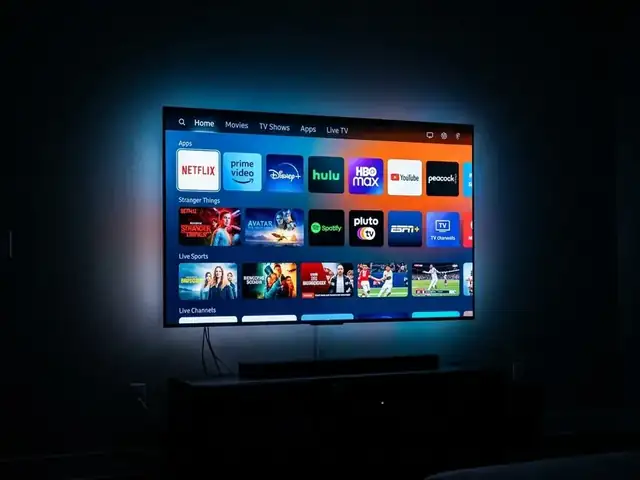
What is Smart IPTV?
Some people type it as IP Smart IPTV. Apps sold elsewhere under names such as Smart IPTV Pro are separate products from other developers, not an upgrade of this one.
Samsung and LG televisions do not run Android. Samsung uses a system called Tizen and LG uses webOS, and neither can install the Android players that dominate elsewhere. For years, that left owners of the two most popular television brands with very few ways to watch an IPTV service without buying a separate box. Smart IPTV filled the gap, and it became the best-known player on those sets.
It is known by several names. The developer calls it Smart IPTV and abbreviates it to SIPTV. People also search for it as the Smart IPTV app, or as an IPTV smart player. They all mean the same program.
In function it is an ordinary player. You supply a playlist from an IPTV service, and it shows the channels, sorts them into groups and plays what you choose. It has a programme guide, favourites, and a channel list designed for a television remote. It has no content of its own. If the difference between a player and a service is unfamiliar, our overview of IPTV players explains it.
What makes it unusual is how you set it up.

How Smart IPTV differs from other players
In most players, you type a login into the app. Smart IPTV has no such screen. Instead, the set-up happens on the developer's website, and the television collects the result.
The process rests on three ideas.
Your television is identified by its MAC address. Every network device has one: a code such as a1:b2:c3:d4:e5:f6. The app displays your television's MAC address when it starts.
You upload a playlist link on a web page. Using a phone or computer, you visit the developer's site, enter the MAC address and paste in the link to your playlist.
The television fetches it. The next time the app starts, it asks the developer's server whether anything has been uploaded for its MAC address, and loads what it finds.
There are advantages to this. Pasting a long link on a phone is far easier than typing it with a television remote. There are drawbacks too. It adds a step that confuses newcomers, it depends on the developer's website being available, and it ties everything to one code that is easy to mistype.
The other difference is payment. The app works free for seven days. After that it stops until you pay a one-off activation fee for that television.
Which TVs and devices run Smart IPTV
| Device | Available? | How it is installed |
|---|---|---|
| LG televisions on webOS | On many models | LG Content Store, where listed for your region |
| Samsung televisions on Tizen | On many models | Not in Samsung's store; installed from a USB drive using files from the developer |
| Older Samsung and LG sets | Some | Depends on model year; see the developer's instructions |
| Android TV and Fire OS devices | Yes | As an Android app |
| Apple TV, iPhone and iPad | No | Use a different player |
On an LG television
Open the LG Content Store, search for Smart IPTV and install it. If it does not appear, it is not offered for your model or region, and you will need a different player or a plug-in stick.
On a Samsung television
Samsung removed the app from its store some years ago. It can still be installed on many models by copying files from the developer's website onto a USB memory stick and inserting it into the television. The exact files and folder layout depend on the model year, and Samsung has tightened what newer sets will accept, so follow the current instructions on the developer's site at siptv.app and do not rely on an old video.
If that sounds like more trouble than it is worth, you are not alone. Many Samsung owners now skip the app and plug in a streaming stick. Our IPTV Smart TV page compares the players available on each brand, including several that are still in Samsung's store.
On Android TV and Fire OS
The app exists for Android devices, but there is little reason to choose it there. Those devices can run players with a normal login screen and a better guide, such as the TiviMate app or Smarters. If you do install it on Android, be careful what you download: app stores contain many unrelated apps with similar names, and files described as a Smart IPTV APK on third-party sites may not be the genuine article. The real app is the one that activates on the developer's own website.
The Smart IPTV trial and activation fee

When first installed, the app runs for seven days without payment. Use that week properly. It is your chance to find out whether the app suits your television and your service before spending anything.
After the trial, the app must be activated.
- What it costs. A single payment per television. It has been 5.49 euros for a long time; the developer's website shows the current price.
- Where you pay. On the activation page of the developer's website, by entering the television's MAC address. Not inside the app, and not to your IPTV provider.
- What you get. Permanent use of the app on that one television. Nothing else. No channels are included.
- What it is tied to. The MAC address you entered. It does not transfer to a different television.
That last point deserves attention before you pay. On some televisions the MAC address shown by the app differs depending on whether the set is connected by Wi-Fi or by network cable, because each connection has its own. Decide how the television will be connected, connect it that way, and only then note the MAC address and activate. Otherwise you may activate one address and end up using the other.
Pay only on the developer's own website
Sellers sometimes offer to activate the app for you, or bundle activation with a subscription. There is no need to involve anyone else. Activation takes two minutes on the developer's site, and it is the only place where you can be sure the payment is applied to your television.

How to set up Smart IPTV: step by step
You will need the television, a phone or computer, and the M3U link from your IPTV service.

- Open the app on the television. The start screen shows the MAC address. Write it down exactly, including the colons. Take a photo of the screen if that is easier.
- Find your M3U link. This is the long web address your provider sent you. If you were given a username, password and server address instead, see the next section.
- Open the playlist upload page. On your phone or computer, go to the developer's website and find the page for uploading a playlist, usually labelled My List.
- Enter the MAC address. Type it into the first box exactly as it appears on the television.
- Paste the playlist link into the URL box. If the page offers a box for a programme guide address, add that too.
- Choose to keep the playlist online, if the page offers the option. This lets the television reload the list whenever the app starts.
- Send it. The page confirms that the playlist has been added for that MAC address.
- Restart the app on the television. Close it completely and open it again. Your channels load in place of the sample list.
If the sample list is still there after a restart, the upload did not reach your television. In almost every case the MAC address was entered with a mistake. Check it character by character: the letter O and the number 0, and the letter B and the number 8, are the usual offenders.

Getting an M3U link from an Xtream Codes login
Many services issue an Xtream Codes login: a server address, a username and a password. Smart IPTV cannot use those three items separately, but the same information can be written as a single M3U link.
The link follows a standard pattern. It begins with the server address, followed by a fixed path, then your username and password, and finally two settings that describe the format of the list:
http://server-address:port/get.php?username=YOUR_USERNAME&password=YOUR_PASSWORD&type=m3u_plus&output=ts
Replace the parts in capitals and the server address with your own details. The setting m3u_plus asks for a list that includes channel groups and logos. The setting output=ts asks for streams in the standard transport format; some services recommend output=m3u8 instead.
Two cautions apply. First, this link contains your password in plain view, so do not post it in forums or send it to anyone. Second, not every service enables this kind of link. If it does not work, ask your provider for the M3U link directly. Our pages on the Xtream Codes format and the M3U format go into the detail of each.
Adding the programme guide
A playlist tells the app which channels exist. The programme guide, or EPG, tells it what is on. They are separate, and Smart IPTV may need to be told where the guide is.
There are two ways the guide can reach the app.
Inside the playlist. A playlist can name its guide address in its first line. If your provider's link does this, the app picks it up without your doing anything.
Entered separately. If the upload page has a box for a guide address, paste in the one your provider supplied. With an Xtream Codes service, the guide address follows a pattern similar to the playlist link, using xmltv.php in place of get.php.
Once the guide is loaded, press the button for guide information on your remote while a channel is highlighted. If listings appear for some channels and not others, the gaps are in the guide data itself: the service has no listings for those channels, or their names do not match. Our article on the IPTV EPG explains how matching works and what you can do about it.

Using the app: what the remote buttons do
Smart IPTV is driven almost entirely by the coloured buttons found on Samsung and LG remotes. Once you know them, the app is quick to use.
| Button | What it does |
|---|---|
| Select or OK | Plays the highlighted channel; while watching, opens the channel list |
| Channel up and down | Moves through the list a page at a time |
| Blue | Shows channel groups |
| Yellow | Shows all channels in one list |
| Green | Shows programme guide information |
| Red | Opens settings |
| Info | Shows details of the current programme |
| Number buttons | Jumps to a channel by its number |
| Return | Hides the list, or goes back |
Newer Samsung and LG remotes with few buttons hide the coloured ones behind a menu. Press the button marked with dots or 123 to bring up an on-screen version.
Smart IPTV settings worth knowing
Press the red button from the channel list to open the settings. Most can be left alone. These are the ones that solve real problems.
Buffer size. Controls how much video the app holds in reserve. Raising it can smooth out stutter on a connection that dips, at the cost of a slower start to each channel.
Stream player type. Televisions can decode streams in more than one way. If channels show a black screen, or sound without a picture, changing this setting is the first thing to try.
Group and channel display. Options for how groups are shown and whether channel logos load. Turning logos off speeds up a very long list.
Lock MAC address. Prevents anyone else from uploading a playlist to your television by guessing or copying its MAC address. Once set, uploads need a PIN. Worth switching on.
Parental lock. Protects chosen groups with a PIN.
Smart IPTV errors and fixes
| What you see | Cause | Fix |
|---|---|---|
| Only a sample list appears | No playlist has reached this MAC address | Re-upload, checking the MAC character by character |
| Check playlist URL | The app cannot fetch your link | Test the link on a computer; confirm your plan is active; upload again |
| The app says it is not activated | The trial has ended | Activate on the developer's website |
| Channels listed, none play | Stream format or connection limit | Change the stream player type; stop streams on other devices |
| Sound but no picture | The television cannot decode that stream | Change the stream player type; ask your provider about stream formats |
| Loading takes minutes | A very large playlist | Ask your provider for a list without the on-demand library; turn off logos |
| Channels stutter | Wi-Fi or broadband | Use a network cable; raise the buffer size |
| The guide is empty | No guide address, or names do not match | Add the guide address on the upload page |
| App vanished after a TV update | The television's software changed | Reinstall using the developer's current instructions |
Why large playlists cause trouble
A television has far less memory than a phone. Some services send a single playlist containing every live channel and tens of thousands of films and episodes, and a list of that size can take minutes to load or fail altogether. If your provider offers a link limited to live channels, or lets you choose which groups to include, use it. The app becomes dramatically quicker.
How to test a link before blaming the app
On a computer, put the M3U link in a browser and press enter. If the link is good, the browser downloads a file or displays a long list of text beginning with #EXTM3U. If you see an error page or nothing at all, the fault is with the link or the subscription behind it, and no setting on the television will help. For wider troubleshooting, see IPTV not working: how to find the fault.

An IPTV playlist for Smart IPTV
There is no Smart IPTV playlist download inside the app. The playlist comes from your IPTV service, and Smart IPTV only loads it.
The Smart IPTV app is empty until a playlist is loaded, so what you need alongside it is a service that supplies one. An IPTV playlist for Smart IPTV is simply an M3U link from your provider, uploaded on the developer's website as described above.
When you are choosing an IPTV service for Smart IPTV, check three things.
- It can be used as an M3U link. The app cannot use a username and password by themselves.
- The playlist is a sensible size. Televisions have little memory, and a playlist limited to live channels loads far faster than one carrying a full on-demand library.
- It comes with a programme guide address, so that listings appear beside the channels.
IPTV King can be used with the Smart IPTV application on Samsung and LG televisions through an M3U link. Public playlists, such as the iptv-org collections on GitHub, load the same way, though many of their links fail; the project itself is at github.com/iptv-org/iptv. If your details arrive as an Xtream Codes login, the section above shows how to write them as a link. Every plan is below, with the full IPTV subscription price list.
IPTV Premium UK
1 screen
Best for: One HD or Full HD television
1
screen at a time
HD and Full HD
picture quality
Term in months
You save £20.00 on 12 months
- HD and Full HD channels on one screen.
- Live TV channels
- TV guide (EPG) for the live channels
- Films and series on demand
- Catch-up TV
- Support 24 hours a day, every day

Pay by Visa, Mastercard, PayPal, Apple Pay, Google Pay or bank transfer
IPTV 4K Ultra
1 screen
Best for: A 4K television and fast broadband
1
screen at a time
Up to 4K
picture quality
Term in months
You save £20.00 on 12 months
- Everything in Premium UK, plus 4K channels, on one screen.
- Live TV channels
- TV guide (EPG) for the live channels
- Films and series on demand
- Catch-up TV
- Support 24 hours a day, every day
Pay by Visa, Mastercard, PayPal, Apple Pay, Google Pay or bank transfer
IPTV 8K Ultra Max
1 screen
Best for: The highest level we sell, on a 4K or 8K television
1
screen at a time
4K, plus some 8K
picture quality
Term in months
You save £30 on 12 months
- Everything in 4K Ultra, plus a selection of 8K content, on one screen.
- Live TV channels
- TV guide (EPG) for the live channels
- Films and series on demand
- Catch-up TV
- Support 24 hours a day, every day
Pay by Visa, Mastercard, PayPal, Apple Pay, Google Pay or bank transfer
IPTV Family Pack
2 screens
Best for: Homes that watch on 2 to 5 screens at once
2
screens at once
Up to 4K
picture quality
Screens at the same time
Term in months
You save £30 on 12 months
- 4K Ultra quality on 2 screens at the same time.
- Live TV channels
- TV guide (EPG) for the live channels
- Films and series on demand
- Catch-up TV
- Support 24 hours a day, every day
Pay by Visa, Mastercard, PayPal, Apple Pay, Google Pay or bank transfer
Not ready to choose? Try IPTV King for 30 days for £10, on your own broadband and devices.
Try 30 days for £10
What to know before you pay to activate
The fee is small, but people regret paying it often enough that a short checklist is worthwhile.
- Use the whole trial first. Seven days is long enough to learn whether the app is comfortable on your television.
- Settle the network connection. Wired or wireless, choose before activating, because the MAC address may differ.
- Remember that it is per television. Activation does not move with you to a new set. If you expect to replace the television soon, a stick that you can carry over is the better investment. If several televisions will watch at once, each needs its own activation, and your plan needs enough screens, such as the IPTV Family Pack.
- Check that your service works with it. The app needs an M3U link. Confirm that your provider supplies one.
- Look at the alternatives on your set. Several other players exist for Samsung and LG televisions, with different fees and features—most notably IBO Player and IBO Player Pro, which also offer a 7-day trial and pair via a MAC address and Device Key.

Smart IPTV or a streaming stick?
It is fair to ask whether a television app is the right tool at all. For many households, plugging in a small streaming device is simpler, and the comparison is worth making before you spend money either way.
| Smart IPTV on the television | A streaming stick or box | |
|---|---|---|
| Extra hardware | None | One small device and its remote |
| Cost | One-off activation fee | About £30 to £70 |
| Set-up | Web upload using a MAC address | Type a login into the app |
| Choice of players | Whatever your television's store allows | Wide, including the best ones |
| Programme guide quality | Adequate | Better in the leading players |
| Moves to a new television | No | Yes |
| Updates | Depends on the television maker | Regular |
Smart IPTV is the right choice if you want nothing extra plugged in, you are happy with its layout after the trial, and your television is one you intend to keep. A stick or box is the better choice if you want the strongest programme guide, expect to change television, or find the upload process awkward, and a 4K stick is the simplest way to be sure of Ultra HD playback. Our page on which IPTV box to buy covers the options.
Whichever way you watch, test the service on your own television before committing to a long plan. Our page on what a trial should prove lists what to check, and the price list shows the shortest plan you can start with.
Questions people ask
Is the Smart IPTV app free?
It is free to try for seven days. After that, the app must be activated with a one-off fee per television, paid to the app's developer on its website. The fee has been 5.49 euros for some time, but check the developer's site for the current figure. The payment unlocks the app only; it does not include any channels.
Does Smart IPTV come with channels?
No. Smart IPTV is an empty player. After installation it shows a short sample list so that you can see the layout, and nothing more. To watch anything you must upload a playlist from an IPTV service. The developer states plainly that it supplies no content.
How do I find the MAC address in Smart IPTV?
Open the app. The MAC address, a code of six pairs of letters and numbers separated by colons, is shown on the start screen. Write it down exactly. It identifies your television when you upload a playlist or activate the app on the developer's website.
Why does Smart IPTV say check playlist URL?
The app could not fetch the playlist link you uploaded. The usual reasons are a mistake in the link, an expired subscription, or a link that was uploaded for a different MAC address. Test the link on a computer, then upload it again for the MAC shown on your television.
Can I use an Xtream Codes login with Smart IPTV?
Not directly, because the app has no username and password screen. It loads an M3U link instead. Most services can supply their login as an M3U link, and the two contain the same details arranged differently. Our page on M3U links explains how the link is put together.
Is Smart IPTV legal?
The app is a media player and is legal to install and use. As with any player, what matters is the playlist you load into it. In the UK that playlist is lawful when the service behind it has the rights to the channels, and unlawful when it has not.
Related guides
 IPTV Smart TV: the best apps for Samsung, LG and other televisionsWhich players work on each brand of television, how to load them, and when a stick is the better answer.18 min read
 IPTV M3U playlists: what they are, how they work and how to load oneWhat is inside the file, M3U versus M3U8, loading a playlist in each player and fixing one that fails.16 min read
 IPTV Smarters Pro: what it is, how to set it up and how to fix itWhat the app does, how to download it safely, how to sign in, and fixes for the common faults.21 min read
 IPTV player apps: which one to use on each deviceThe main IPTV apps compared by device, with what each does well and how to install it safely.17 min read