
The short version
- The install needs a Fire TV that runs Fire OS. Newer sticks such as the Fire TV Stick 4K Select run Vega OS and cannot do it.
- The method is always the same: install Downloader, allow it to install apps, fetch the file from the developer's site.
- Downloader codes are shortcuts that anyone can create. Type the developer's real address instead.
- When you have finished, delete the installer file and switch the permission off again.

Before you start: can your Firestick run IPTV Smarters Pro?

A few years ago, any Fire TV Stick could install any Android app. That is no longer true, and it is the first thing to check, because no amount of following steps will make an incompatible stick work.
Amazon's Fire TV devices now run one of two systems. Fire OS, based on Android, runs Android apps and can install them from outside the Amazon Appstore once a setting is switched on; every step on this page assumes it. Vega OS, Amazon's newer system, runs no Android apps and has no such setting, so IPTV Smarters Pro cannot go on it at all. The Fire TV Stick 4K Select was the first stick to use Vega, and Amazon has said new sticks will follow.
To check yours, open Settings, choose My Fire TV, then About. If the screen says Fire OS, carry on. If it says Vega, skip to the last section of this page for your options. Televisions with Fire TV built in usually run Fire OS, so the same check and the same steps apply to them. Our page on the best Firestick for IPTV lists which models run which system, and which to buy.
| What About shows | Can it run IPTV Smarters Pro? | What to do |
|---|---|---|
| Fire OS | Yes | Follow the steps on this page |
| Vega OS | No | See the last section for your options |
| A television with Fire TV built in | Usually, as most run Fire OS | Check About, then follow the same steps |
What you need
| What you need | Why |
|---|---|
| A Fire TV device running Fire OS, connected to your television and the internet | Vega OS cannot install the app |
| Your Amazon account, signed in on the device | To install Downloader from the Appstore |
| About 100 MB of free storage | For the app and its channel list |
| Your IPTV login details | A username, password and server address, or an M3U link |
| Five to ten minutes | The whole install, start to finish |
You do not need a computer, a USB stick or any cables beyond the ones already plugged in.


Step 1: install the Downloader app
Downloader is a free app in the Amazon Appstore, made by the long-running Fire TV news site AFTVnews. It does one thing: it fetches a file from a web address and offers to install it.
- From the Fire TV home screen, select the Find or search icon.
- Type Downloader. It appears in the suggestions after a few letters.
- Select the app with the orange icon and choose Get or Download.
- Wait for it to install. Do not open it yet.

Step 2: allow Downloader to install apps
By default, a Fire TV refuses to install anything that did not come from the Amazon Appstore. You need to make an exception for Downloader.
- Open Settings from the home screen.
- Select My Fire TV.
- Select Developer Options.
- Select Install unknown apps.
- Find Downloader in the list and switch it On.
If Developer Options is not there
On current versions of Fire OS, Amazon hides this menu until you ask for it. The method is odd but simple.
- In My Fire TV, select About.
- Highlight the first item, which is the name of your device.
- Press the select button on your remote seven times in a row.
- A message at the bottom of the screen confirms that you are now a developer.
- Press back once. Developer Options now appears in the My Fire TV menu.
Nothing else about the device changes. You have only revealed a menu.
Step 3: download IPTV Smarters Pro to the Firestick
Now you can fetch the app. The address you type here is the most important detail in the whole process, because it decides whose file ends up on your device.
- Open Downloader. The first time, it asks for permission to access files on the device. Choose Allow.
- Select the address box at the top of the Home tab.
- Type the developer's current web address, found as described below. Check the spelling letter by letter.
- Select Go. The developer's website opens inside Downloader.
- Find the download for Android and select it. The file, which ends in
.apk, begins to download. - When the download finishes, an install screen appears. Select Install.
- When you see App installed, select Done, not Open. This returns you to Downloader for the tidy-up in step 5.
Many guides shorten this by giving a direct address to the file itself. If you use one, the rule is the same: its domain must match the developer's own site exactly. An address that looks similar but is spelled differently belongs to someone else.
How to find the developer's real address
The developer's web address has changed more than once, and look-alike sites wait for anyone who guesses the spelling. For that reason we do not print an address here, and you should be wary of any guide that does. Find it from a source the developer controls.
- On your phone, open the App Store or Google Play and find the app's official listing. On Apple devices it is called Smarters Player Lite.
- Further down the listing you will find the developer's details, with a link to its website.
- Note the address shown in your phone's browser. That is the address to type into Downloader.
If the listing has no website link, or the address does not load, do not go looking for a copy somewhere else. Use a player that is in your device's own store instead, as described in the last section of this page.
IPTV Smarters Pro Downloader codes: how they really work
Search for how to install the app and you will be offered a number. One guide says to type one five-digit or six-digit code into Downloader; the next gives a different one for what it calls the same app. People reasonably ask which is the real IPTV Smarters Pro Downloader code. The honest answer is that the question is built on a misunderstanding.
The same thing goes by many names: an IPTV Smarters download code, an IPTV Smarters short code, an IPTV code for Firestick. Lists of IPTV downloader codes, free for Firestick owners to copy, fill search results. So do threads titled "IPTV Smarters Pro downloader code 2025" on Reddit. The word free means nothing here. IPTV Smarters Firestick free codes unlock nothing, because the app costs nothing anyway. IPTV downloader codes for Firestick are only short numbers that stand for a web address, and IPTV Smarters downloader codes, free or not, can point wherever their author chose. An IPTV Smarters Pro download code is safe only when you know which address it opens. A search for "smart IPTV downloader" leads to the same kind of list, for a different app.
A Downloader code is a shortened web address. AFTVnews runs a free service that turns any long address into a short number, so that you can type six digits with a remote instead of sixty characters. When you enter the number, Downloader looks up the address behind it and goes there.
Three things follow from that.
Anyone can make a code. Creating one requires no permission from the app's developer and no connection to them. A site that publishes an IPTV Smarters code has usually made its own, and codes posted in forums and Reddit threads are no different.
A code can point anywhere. It might lead to the developer's file. It might lead to a copy stored on the guide writer's own server, which could be out of date or altered. It might lead to a page full of other downloads. You cannot tell from the number.
Codes go stale. If the file behind a code is moved or removed, the code stops working, which is why old guides are full of numbers that now produce an error.
So when different sites quote different codes for the same app, they are not disagreeing about a fact. They are each advertising their own shortcut.
| A Downloader code | The full address | |
|---|---|---|
| What it is | A short number that points to an address | The address itself |
| Who made it | Anyone | The developer publishes it |
| Can it go stale? | Yes, if the file behind it moves | Only if the developer moves it |
| Can you see where it leads? | Only after you enter it | Before you start |
| Typing with a remote | Six digits | A few seconds longer |
How to use a code safely, if you use one at all
- Prefer the full address. Typing the developer's own web address takes a few seconds longer and removes the doubt.
- Only trust a code that the app's developer has published on its own website.
- After entering a code, look at the address Downloader shows before you install. If the domain is not the developer's, cancel.
- Never use a code supplied by a seller for its own special version of an app.
The same reasoning applies to every list of IPTV downloader codes you will find. A code is a convenience. It is not a mark of authenticity.
Why 2025 and 2026 Downloader codes keep changing (and verifying the APK)
Search results are filled with pages promising an updated IPTV Smarters downloader code for 2025 or 2026, or a direct IPTV Smarters Pro Firestick APK hosted on third-party mirrors. Those numbers change frequently because AFTVnews shortcodes only redirect to whatever file path the code creator pasted in at the time; once a newer build replaces an older filename, the old code returns an error.
Rather than cycling through random six-digit numbers, check the developer's current domain through its official listing on Google Play or Apple's App Store, type that domain straight into Downloader, and verify that the download screen inside Downloader matches the developer's domain before selecting Install. That single check protects your Fire OS stick against stale links and modified APKs.
IPTV Smarters Pro Firestick login: get your IPTV King plan
Step 4 needs a login. A IPTV King login works in IPTV Smarters Pro on any Fire TV that can install the app, and it arrives in your WhatsApp chat with us after you order. Plans start at £18.99 for 3 months, with no contract, and you can buy an IPTV subscription with every price shown.
IPTV Premium UK
1 screen
Best for: One HD or Full HD television
1
screen at a time
HD and Full HD
picture quality
Term in months
You save £20.00 on 12 months
- HD and Full HD channels on one screen.
- Live TV channels
- TV guide (EPG) for the live channels
- Films and series on demand
- Catch-up TV
- Support 24 hours a day, every day
Pay by Visa, Mastercard, PayPal, Apple Pay, Google Pay or bank transfer
IPTV 4K Ultra
1 screen
Best for: A 4K television and fast broadband
1
screen at a time
Up to 4K
picture quality
Term in months
You save £20.00 on 12 months
- Everything in Premium UK, plus 4K channels, on one screen.
- Live TV channels
- TV guide (EPG) for the live channels
- Films and series on demand
- Catch-up TV
- Support 24 hours a day, every day
Pay by Visa, Mastercard, PayPal, Apple Pay, Google Pay or bank transfer
IPTV 8K Ultra Max
1 screen
Best for: The highest level we sell, on a 4K or 8K television
1
screen at a time
4K, plus some 8K
picture quality
Term in months
You save £30 on 12 months
- Everything in 4K Ultra, plus a selection of 8K content, on one screen.
- Live TV channels
- TV guide (EPG) for the live channels
- Films and series on demand
- Catch-up TV
- Support 24 hours a day, every day
Pay by Visa, Mastercard, PayPal, Apple Pay, Google Pay or bank transfer
IPTV Family Pack
2 screens
Best for: Homes that watch on 2 to 5 screens at once
2
screens at once
Up to 4K
picture quality
Screens at the same time
Term in months
You save £30 on 12 months
- 4K Ultra quality on 2 screens at the same time.
- Live TV channels
- TV guide (EPG) for the live channels
- Films and series on demand
- Catch-up TV
- Support 24 hours a day, every day
Pay by Visa, Mastercard, PayPal, Apple Pay, Google Pay or bank transfer
Not ready to choose? Try IPTV King for 30 days for £10, on your own broadband and devices.
Try 30 days for £10
Step 4: open the app and sign in
With the app installed, the remaining step is to connect it to your service.
- Hold the home button on your remote, choose Apps, and open IPTV Smarters Pro.
- Accept the terms of use.
- Choose how to add your service. Use Login with Xtream Codes API if you were sent a username, password and server address. Use Load your playlist or file/URL if you were sent an M3U link.
- Enter your details and select Add user.
- Wait while the channel list loads, then select Install EPG to download the programme guide.
Typing a long server address with a remote control is slow and easy to get wrong. Two things help. The free Fire TV app for your phone lets you use the phone's keyboard to type into the television. And reading each character back before pressing Add user saves more time than it costs.
The main IPTV Smarters Pro page explains every menu and the settings worth changing. If your login is rejected, our Xtream Codes explainer shows what each part of the address should look like.
Step 5: tidy up and lock the door again
Three small jobs finish the install properly. Most guides leave them out.
Delete the installer file. Go back to Downloader. It offers to delete the file you downloaded; choose Delete, then confirm. The app is installed and no longer needs it, and storage on a stick is limited.
Switch the permission off. Return to Settings, My Fire TV, Developer Options, Install unknown apps, and turn Downloader Off. The apps you have installed keep working. Leaving the setting on means anything Downloader is pointed at in future can be installed, which is not a door to leave open in a house with curious children. Turn it back on when you next need to update.
Put the app where you can find it. On the home screen, go to your apps, highlight IPTV Smarters Pro, press the menu button, which has three lines on it, and choose Move to front.

How to use IPTV Smarters Pro on a Firestick after the install
That is how to get IPTV Smarters Pro on a Firestick. Using it is simpler than installing it. Hold the Home button, open Apps and move the app to the front row so it is one press away. Inside, Live TV, Movies and Series each have a tile, and the remote's menu button adds a channel to Favourites.
If a friend asks how to download IPTV Smarters Pro on a Firestick, the five steps above are the whole answer: Downloader, permission, the official address, sign in, lock up. How to download IPTV Smarters on a Firestick does not change with the plan you buy, and an IPTV Smarters Pro Firestick set-up works the same with a trial login as with a full one.

Getting the best picture from IPTV Smarters Pro on a Firestick
Most picture problems on a stick come from its connection rather than the app, but two settings inside Smarters are worth knowing.
Stream format. If channels start quickly but freeze now and then, switch the live TV format from MPEG-TS to HLS in the settings. If they are steady, leave it, because MPEG-TS starts faster and stays closer to live.
Player selection. If one channel plays sound with a black picture, change the player used for live TV in the same menu. The stick's own decoder handles most channels; the alternative player rescues the odd one it does not.
For the stick itself, the 5 GHz Wi-Fi band and Amazon's Ethernet adapter make the biggest difference; our page on stopping buffering on a Firestick covers the hardware fixes, and our IPTV buffering checklist works through every other cause.
Updating or removing IPTV Smarters Pro on a Firestick
Because the app did not come from the Amazon Appstore, the store will not update it for you.
To update: turn the Install unknown apps permission back on for Downloader, fetch the current file from the developer's site exactly as in step 3, and install it. The new version replaces the old one and keeps your login and settings. Then delete the file and switch the permission off again.
To remove: open Settings, Applications, Manage Installed Applications, select the app and choose Uninstall. Your subscription is not affected. You can sign in again on any device.

IPTV Smarters Pro Firestick install errors and how to fix them
Two complaints cover most cases. "Unable to download IPTV Smarters Pro on Firestick" nearly always means the address was mistyped in Downloader, or the stick is out of storage. "IPTV Smarters Pro not working on Firestick" after a good install is usually the login or the broadband, not the app. When IPTV Smarters is not working on a Firestick that ran it yesterday, restart the stick before anything else.
If the app installs but then shows "Unfortunately, IPTV Smarters Pro has stopped" on the Firestick, clear its cache under Settings, Applications, Manage installed applications, and open it again. If it still stops, uninstall it, restart the stick and install the current version from the developer's site.
| Message or symptom | Cause | Fix |
|---|---|---|
| Developer Options is missing | Hidden on current Fire OS versions | Press select seven times on the device name in About |
| Install unknown apps is missing entirely | The device runs Vega OS | Sideloading is not possible on this model |
| Downloader cannot connect to the address | A typing error, or no internet | Re-type the address; check the network in Settings |
| The download stops partway | Weak Wi-Fi or a full device | Free up storage and try again |
| App not installed | Not enough storage, or an incomplete file | Delete unused apps, then download the file again |
| There was a problem parsing the package | The file is damaged, or the device is too old for it | Download again; first-generation sticks may be unsupported |
| Install is blocked, with no option to continue | Permission not switched on for Downloader | Repeat step 2 |
| The app opens to a warning from Amazon | Amazon has blocked that specific app build | Use the current version from the developer, or a different player |
| The app installs but the login fails | A problem with the details, not the install | Check the address, username and password |
Two of those need a word of explanation.
The parsing error almost always means that the file did not download completely. It is a problem with the file, not with your stick, and downloading it again normally cures it.
The Amazon warning is newer. Amazon now blocks apps it judges to be gateways to unlicensed streams. The block applies across the Fire TV range and covers sideloaded apps too. A general-purpose player from its real developer is not what that system is aimed at. Modified copies and sellers' own versions are a different matter, as our page on IPTV app malware explains, and are one more reason to install only from the developer.
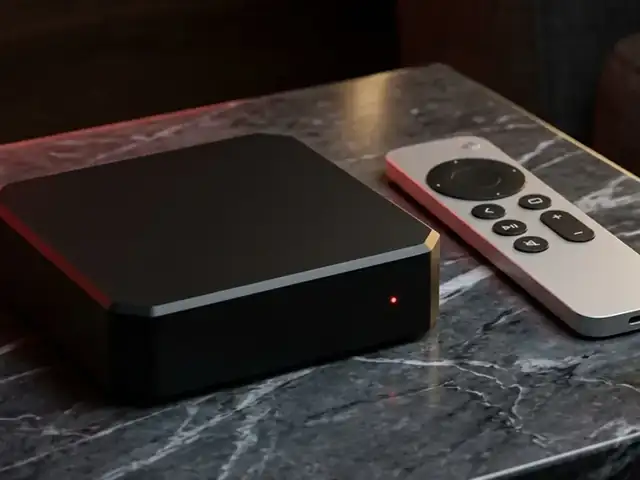
If your Firestick cannot sideload
If your device runs Vega OS, or sideloading is otherwise unavailable, you still have sensible options.
Look in the store on the device. The Amazon Appstore on your stick lists what is available for it. Search for IPTV and for media players. VLC, for example, has long been offered for Fire TV and can open an M3U link, such as a free public playlist, although it has no programme guide grid. Our M3U playlist page explains how to use one.
Use a different device for IPTV. An Android TV or Google TV box has the Google Play Store, where several of the best players can be installed directly with no sideloading at all. Our Android TV box comparison covers them, and they cost about the same as a stick.
Use your television's own apps. Many Samsung and LG sets have players in their built-in stores. See our page on IPTV apps for Samsung and LG TVs.
Choose a Fire OS model next time. If you prefer Fire TV and have not bought yet, pick a model that runs Fire OS.
Once the app is working, you may find you want a better programme guide than Smarters offers. That is the usual reason people move on to TiviMate on Fire OS, which installs on a Fire OS stick in exactly the same way. Our IPTV player comparison covers the choices.
And if you have the app ready but have not yet picked a service, you can compare our plans or read how to test an IPTV service on your Firestick before paying for a long term.
Questions people ask
What is the Downloader code for IPTV Smarters Pro?
There is no single official code that we can confirm, and the numbers quoted on different websites disagree with one another. A Downloader code is only a shortcut to a web address, and anyone can create one. The safe method is to find the developer's current web address through the app's official store listing, type that into Downloader and take the Android download from there.
Is IPTV Smarters Pro in the Amazon Appstore?
No. On Fire TV devices it has to be installed from a file, a process known as sideloading. That is why the Downloader app is needed, and why the install only works on Fire TV models that run Fire OS and permit apps from outside Amazon's store.
Why can I not find Developer Options on my Firestick?
On recent Fire OS versions the menu is hidden. Go to Settings, My Fire TV, About, highlight the name of your device and press the select button seven times. A message confirms that developer options are enabled, and the menu then appears under My Fire TV.
Does IPTV Smarters Pro work on the Fire TV Stick 4K Select?
No. The 4K Select runs Amazon's Vega operating system, which does not run Android apps and does not allow apps from outside the Amazon Appstore. If you own one, use a player that is available in its store, or watch on a different device. Our IPTV Firestick guide lists the models that do support the app.
Is it legal to sideload apps on a Firestick?
Yes. Installing an app from outside the Amazon Appstore is a feature of Fire OS and is not unlawful. What matters is what the app is and what you watch with it. IPTV Smarters Pro is a legal media player; the service you connect to it must hold the rights to its channels.
How do I update IPTV Smarters Pro on a Firestick?
Sideloaded apps do not update through the Amazon Appstore. Open Downloader, fetch the current file from the developer's site again and install it. The new version installs over the old one and keeps your login. The app usually tells you on its home screen when a newer version exists.
Do I need a new 2026 Downloader code for IPTV Smarters Pro on Firestick?
No. There is no yearly official Downloader code for IPTV Smarters Pro. Shortcodes expire whenever the underlying APK link changes, and anyone can generate a new number pointing to an unofficial copy. Typing the developer's verified website address directly into Downloader avoids broken or tampered shortcodes.
Related guides
 IPTV Smarters Pro: what it is, how to set it up and how to fix itWhat the app does, how to download it safely, how to sign in, and fixes for the common faults.21 min read
 IPTV Firestick: which model to buy, which apps to use and how to set it upWhich Fire TV models still run IPTV players, the best apps, set-up and a stable picture.17 min read
 TiviMate IPTV player: how to set it up and get the best from itInstall it, add your service, set the buffer and guide properly, and decide whether Premium is worth it.16 min read
 IPTV buffering: why it happens and how to stop itFind the cause in five minutes, work out the speed you need, and apply twelve fixes in the order most likely to work.20 min read